Controller Play in Wild n Chill
Gamepad comfort for Coldwater Crossing, couch co-op, and long trail evenings.
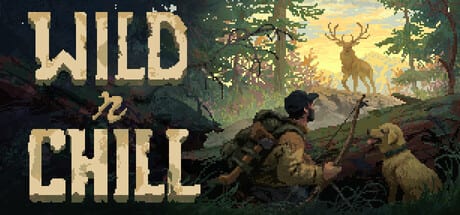
Wild n Chill is built for evenings that drift toward the couch. Steam lists Full controller support along with Shared/Split Screen and Remote Play Together, so a gamepad is not a second-class input mode — it is a first-class way to walk Coldwater Crossing, manage camp chores, and invite friends without fighting over a single mouse. This guide covers controller comfort, co-op logistics, and how to keep bushcraft actions readable on a stick-and-buttons layout. The full game is TBA on PC, Mac, and planned Switch platforms; Steam hosts a Demo that went live on August 6, 2026.
New to the wilderness loop? Start with Getting Started, then return here when you want pad-specific habits. Desktop players can compare notes on Keyboard & Mouse. For a tickable session plan, use the Demo Checklist.
What “Full controller support” should mean for you
Full controller support, in Steam’s language, means you should be able to complete the Demo’s core loop without plugging in a keyboard for mandatory prompts. Expect movement on a stick, camera on the other stick or a right-stick look, face-button confirms for interact and UI, and shoulder or trigger access to tools, sprint, or contextual actions depending on the build.
Because Wombat Brawler can still tune prompts between Demo updates, treat any community bind chart as temporary. Open the in-game options after you install the Steam Demo and confirm icons match your pad. Wishlist the full game Steam page if you want TBA announcements from the same studio that made Cast n Chill.
Couch setup that keeps the chill intact
- Sit centered for Shared/Split Screen. Two players on one TV need elbow room more than max brightness.
- Charge packs before a four-friend online night. Online co-op supports up to four; dead controllers create awkward host pauses.
- Match TV HDR and darkness carefully. Dense woods already hide black bears — crushed blacks on a living-room set make trail reads harder.
- Keep snacks off the interact button. It sounds silly until someone “places” a wall with a greasy thumb.
Hardware requirements stay light (Windows 10, i3-class CPU, 4 GB RAM, DX9, 256 MB GPU), so many living-room PCs can run the Demo. Input comfort still decides whether the session feels cozy. If stick drift yanks your camera into the treeline, fix deadzones before you blame Coldwater Crossing.
Movement, camera, and stamina-friendly stick work
Hold a soft stick curve in your head even if the options menu only offers a sensitivity slider. Wild n Chill is not a flick-shot arena. Walk, pan, stop, then interact. When your dog companion warns about danger, release sprint inputs and sweep the camera across dense cover before you commit to a shortcut. That habit pairs with the Wildlife page and the Demo Guide.
Energy, food, and water still gate long hikes. Controllers make continuous sprint tempting because a trigger is always under a finger. Practice tap-sprinting between landmarks instead. If you are learning needs management, Survival Needs explains the chill loop without turning meters into stress.
Menus, crafting, and building on a pad
UI navigation is where pads feel different from a mouse. Move deliberately through craft categories. Confirm recipes only when materials are actually in reach. For cabin placement, use slower camera orbits and peek at doorway clearance before you commit a piece — the Cabin Building guide helps you plan upgrades from survival shelter toward smokehouses and sheds.
If a radial menu or hold-to-craft prompt appears in your build, finish the hold cleanly; canceling halfway often wastes the calm rhythm the game wants. Keep Crafting open on a phone if you need recipe context without alt-tabbing a big TV.
Shared/Split Screen and Remote Play Together
Shared/Split Screen is the classic “two pads, one cabin” fantasy. Agree who is carpenter before anyone places windows. Split Screen also shrinks vertical FOV — stand a little farther from hazards and call out bear sightings out loud. Remote Play Together can put a friend on your Demo session without them owning the same machine setup; still walk them through your house rules for looting and building.
Online co-op up to four works with pads in different houses. Voice chat helps more than fancy binds. Assign roles: hunter, fisher, wood runner, camp minder. The Co-op Guide expands those chores. For map orientation while someone else drives the camera, keep Coldwater Crossing bookmarked.
Mixing controllers with keyboard players
Mixed lobbies are normal. Keyboard players often jump through menus faster; controller players often walk trails longer without fatigue. Do not let the mouse user monopolize Buck trades and cabin blueprints unless the group voted for that. Hermit trading tips live in Trading with Buck when that page is in your reading list, and Demo expectations stay on the Demo Guide.
If one friend prefers desktop precision for fine placement, let them handle the fiddly build while pad players gather fiber, fish, and firewood. That split keeps Full controller support feeling like a feature, not a compromise.
Gyro, adaptive triggers, and platform notes
Steam Input may expose extra features depending on your pad and the Demo build. Gyro aiming can help fishing casts or fine camera nudges if you already like it in other games — it is optional, not required. Adaptive trigger resistance is only useful if it does not make chopping chores tiring. Planned Nintendo Switch and Switch 2 versions imply handheld comfort later; until those builds exist, treat Switch notes as roadmap context, not Demo instructions.
Studio films and announcements appear on the Wombat Brawler YouTube channel and Wombat Brawler on X. For trailer-focused impressions, see Review. For dated Demo context, see Demo Notes and the Announcement Timeline.
A one-evening controller practice plan
- Connect the pad before launching so Steam recognizes it at boot.
- Lower look sensitivity until soft stick movements scan berry lines cleanly.
- Complete a short camp loop: shelter check, water, food, one craft, one gather route.
- Practice a calm retreat when you spot dense cover that might hide a black bear.
- If a friend joins on Split Screen, build nothing until both players can see the plot.
Finish by opening the Controls Hub if you need sibling links, or the Tools Hub for checklist helpers. Official design notes remain on the studio site.
A good controller session ends with warm hands, a stable camp, and nobody blaming the D-pad for a wall installed backwards — because you planned the build on purpose.
Frequently Asked Questions
Quick answers to the most common questions.
Does the Steam Demo support controllers?
Steam lists Full controller support for Wild n Chill. Confirm prompts in the Demo options after install, since builds can tune icons over time.
Can two players use controllers on one screen?
Yes. Shared/Split Screen is listed alongside online co-op for up to four and Remote Play Together.
Is a keyboard required for crafting?
It should not be. Full controller support aims to cover the core loop; if a prompt looks wrong, check Settings or Steam Input.
Will Switch versions use the same controls?
Nintendo Switch and Switch 2 are planned for the full game, which is still TBA. Use the Steam Demo’s current pad layout for now.
Where should controller players go next?
Play through Getting Started, tick the Demo Checklist, and skim the Co-op Guide before a four-player evening.