Keyboard & Mouse in Wild n Chill
Desktop-friendly habits for Coldwater Crossing chores, crafting, and calm exploration.
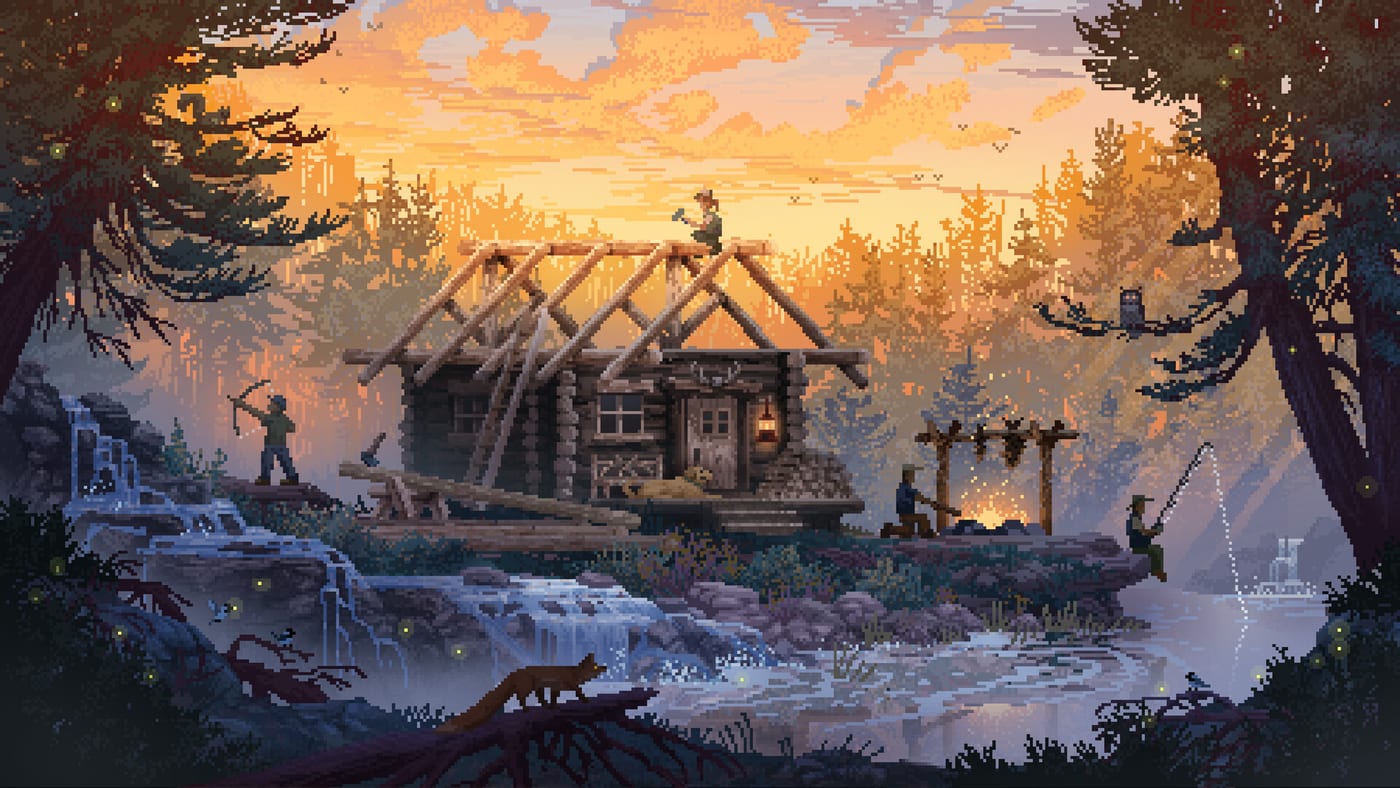
Keyboard and mouse remain the default comfort zone for many PC Demo players. Wild n Chill asks you to forage, hunt, fish, trap, and craft at a cozy pace, so a stable desktop layout often feels clearer for journals, inventories, and cabin pieces than a stick-only setup. This page explains how to think about mouse look, keyboard movement, interaction prompts, and multiplayer etiquette while you learn Coldwater Crossing. The full game is TBA; Steam hosts a Demo that went live on August 6, 2026.
If you have not finished first-camp setup yet, keep Getting Started nearby. For a task list you can tick during a session, open the Demo Checklist. Controller players should jump to Controller instead.
Why keyboard and mouse fit bushcraft chores
Coldwater Crossing teaches bushcraft essentials: simple tools, a survival shelter, foraging, hunting, and meeting locals such as hermit Buck. Those loops involve a lot of small selections — picking berries, placing wood, opening a craft recipe, checking food, water, and energy. A mouse cursor makes those selections feel deliberate. Keyboard modifiers (when present in your build) keep sprint, crouch, or tool-swap actions close to WASD-style movement without forcing you to leave the keyboard home row for every menu.
That precision matters when black bears roam dense woods. You want camera control that lets you scan a trail before committing to a berry bush, not a frantic spin that hides the path home. Pair field awareness with the Wildlife overview so you know which animals are journal targets versus hazards.
Recommended desk setup before you boot the Demo
- Use a real mouse if you can. Trackpads work in a pinch on the light system floor (Windows 10, modest CPU, 4 GB RAM, DX9), but slow acceleration makes camera pans feel sticky during hunts.
- Clear desk height for long sessions. Wild n Chill sessions stretch when you chase cabin upgrades; wrist comfort is part of the chill fantasy.
- Decide UI scale early. If text feels small on a 1080p laptop, raise UI scale in options before you memorize icon positions.
- Keep a second monitor optional, not required. Wiki pages like Crafting or Coldwater Crossing help, but do not alt-tab mid-bear encounter.
Download the Demo from the Steam Demo store page and wishlist the full game listing if you want TBA news. Studio context lives on the Wombat Brawler Wild n Chill page.
Movement and camera habits that stay chill
Move with the keyboard and steer look with the mouse, then slow down at landmarks. When you approach water, berry patches, or dense cover, stop walking for a half-second and pan the camera. That pause is how you keep energy from draining on pointless backtracks and how you notice dog warning cues before you commit to a shortcut.
Avoid “sprint everywhere” muscle memory from harsher survival games. Coldwater Crossing rewards noticing dry wood and safe camp pockets. If your mouse sensitivity is so high that tiny bumps swing the whole horizon, lower it until trail walking feels boring — boring is good here.
Interaction, crafting, and cabin placement
Treat the mouse as your confirmation tool. Hover prompts before you click-confirm a craft or place a wall. Cabin pieces that look fine from one angle can block a doorway from another; orbit with the mouse before you lock a placement. When you upgrade from a survival shelter toward smokehouses or wood sheds, read Cabin Building so your clicks match a plan instead of improvising a maze.
Crafting loops benefit from short mouse travel. Keep the inventory hotkeys (whatever your Demo build shows) near fingers that already rest on movement keys. If a recipe needs materials from a distant stash, walk first, open menus second — do not try to manage a huge UI while a bear silhouette sits in the fog.
Hunting, fishing, and tool swaps
Hunting and fishing in a cozy survival game still ask for timing. Use the mouse for aim or cast direction, but reset your posture between attempts. If a retrieve from your dog companion pulls attention off-screen, glance at the trail before you click the next action. Tool swaps should be intentional: chop wood with the chopping tool, then switch back before you wander into forage zones with the wrong item selected.
For fish and animal journal goals planned across the wider wilderness (40+ animals and 20+ fish in the full pitch), treat keyboard notes or a paper pad as optional — or use this wiki’s Wildlife and Crafting pages instead of cluttering the HUD.
Co-op on keyboard while friends use pads
Online co-op supports up to four players. Keyboard hosts often become the default “menu person” because cursors feel faster in shared storage screens. That is fine if you agree on it. It becomes messy if the keyboard player also insists on placing every cabin piece while three friends wait. Split roles: one keyboard player can manage builds while another focuses on hunting calls, or rotate the carpenter job each evening.
Shared/Split Screen on one PC usually pushes at least one person onto a controller. If you stay on mouse, sit where your elbow will not collide with a couch cushion mid-craft. For chore plans, see the Co-op Guide. For Demo scope reminders, skim the Demo Guide.
Accessibility and comfort toggles to look for
Open Settings after install and hunt for sensitivity, invert-Y, vibration (if a pad is also connected), subtitle or prompt timing options, and any key-rebinding screen your build includes. Rebind only after you have played thirty quiet minutes; early rebinds based on panic are how people lose the interact key.
If you switch to a gamepad later the same week, visit Controller before you assume desktop binds still apply. Return to the Controls Hub whenever you need the section overview.
A simple practice loop for your first desktop hour
- Walk a short loop near your first shelter without opening the craft menu.
- Forage one node, drink or fill water, and eat once — confirm each prompt with deliberate clicks.
- Place or repair one camp fixture with careful mouse orbiting.
- Practice a tool swap before a short hunt or chop.
- End at the fire with energy stable, then decide whether Buck trading waits for another day.
That loop trains keyboard and mouse discipline without turning Coldwater Crossing into a keybind spreadsheet. When you want trailer tone or Demo timeline context, read Review and the Announcement Timeline. Official video drops also appear on the Wombat Brawler YouTube channel and short updates on X.
Keyboard and mouse will not clear a black bear for you — but a calm camera and patient clicks keep the wilderness feeling cozy instead of chaotic.
Frequently Asked Questions
Quick answers to the most common questions.
Is keyboard and mouse fully supported in the Demo?
Yes. PC players commonly use keyboard and mouse for Coldwater Crossing. Confirm any rebinds in the Demo settings screen for your build.
What mouse sensitivity should I use?
Lower until trail walking feels stable. Wild n Chill favors scanning berry patches and bear paths over flick aiming.
Can keyboard players join controller friends online?
Yes. Online co-op supports up to four players and mixed input is normal — just agree who handles menus and building.
Where do I find the official Demo download?
Use the Steam Demo page for App 4628650. The full game listing is App 3847920 and remains TBA.
Should I rebind keys on day one?
Play a short calm session first, then rebind only keys that still feel awkward. Panic rebinds usually create new mistakes.